Collection cards
Up to eight collection cards with image, title, label and product count. Text over the image or below it, 2 to 5 columns, or a swipeable row on mobile.
- Category
- Product and collection discovery
- Use on
- Home, Collection, Landing pages
- Reads
- Collections
- Size
- 28 KB, no JavaScript
- License
- MIT, free for client work
In short
Collection cards is a free Shopify section that shows up to eight collections as image cards with title, optional label and product count. Each card can take a custom image and title, the mobile layout can be one column, two columns or a swipeable row, and it works in Online Store 2.0 themes without an app.
When to use it
- Home page "shop by category" row under the hero
- Top of the all-collections page or a seasonal landing page
- Gift guide pointing to curated collections, with a label such as New or Gifts on each card
In the theme editor
- Heading, heading tag and size, text, optional button beside the heading
- Up to 8 cards: collection, custom image, custom title, label
- Card style: text over the image on a gradient, or text below the image
- Image shape (square, portrait, tall, landscape), corner radius, card text alignment
- Product count on or off, with your own wording
- Columns: 2–5 on desktop; 1 column, 2 columns or a swipeable row on mobile; card spacing
- Background color or gradient, text, accent, card, overlay and overlay text colors
- Top and bottom padding per device, show on desktop/mobile only, anchor ID
- Zoom image on hover
Files
sections/lib-collection-cards.liquidView the code
snippets/lib-image.liquidView the code
snippets/lib-button.liquidView the code
Written in plain Liquid, CSS and, where needed, a small script. No app, no dependencies.
How to add it to your theme
- Copy the section file into your theme’s sections folder, and any snippet it lists into snippets.
- In the theme editor, choose Add section and pick the one that starts with “Lib ·”.
- Replace the sample text with your store’s own, and set the colors to match your brand.
Questions
- Which image and title does a card use?
- The collection's featured image and title, unless you set a custom image or custom title on the card; those take priority. The product count comes from the collection and can be switched off.
- How does it look on mobile?
- You choose one column, two columns or a swipeable row. The row scrolls sideways with snap points inside the section, so the page itself does not scroll horizontally. Between 750px and 989px the grid shows up to three columns.
- Does it need JavaScript?
- No. The section is HTML and CSS only. The hover zoom is a CSS transition and is turned off for visitors who prefer reduced motion.
- What if a card has no collection selected?
- In the theme editor it shows a placeholder image with a sample title. On the live store a card with no collection, image or title is not rendered; a card with only a custom title or image shows without a link.
- Will the images slow the page down?
- Images load lazily, except the first row when the section is one of the first two on the page. Each card reserves its space with a fixed image shape, so the layout does not shift as images load.
Before you publish
- The text in the demos is sample content. Replace it with facts about your own store before you publish.
- Animations are switched off for visitors who ask for reduced motion.
- Every file is checked with Shopify Theme Check before it is published here.
Need it adapted to your theme, or a section that isn’t here? See Shopify theme development.
More sections
Product and collection discovery
Featured collection
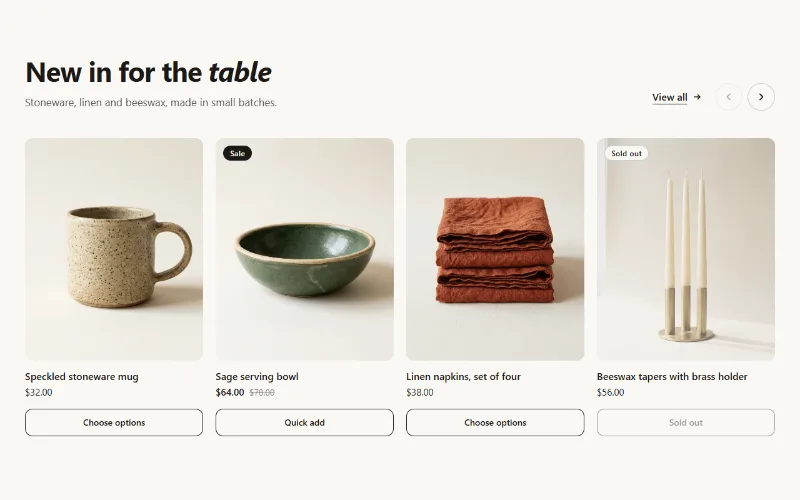
Product cards from one collection as a grid or swipeable carousel, with hover image, sale and sold-out badges, and a quick add button.
Product and collection discovery
Shop the look
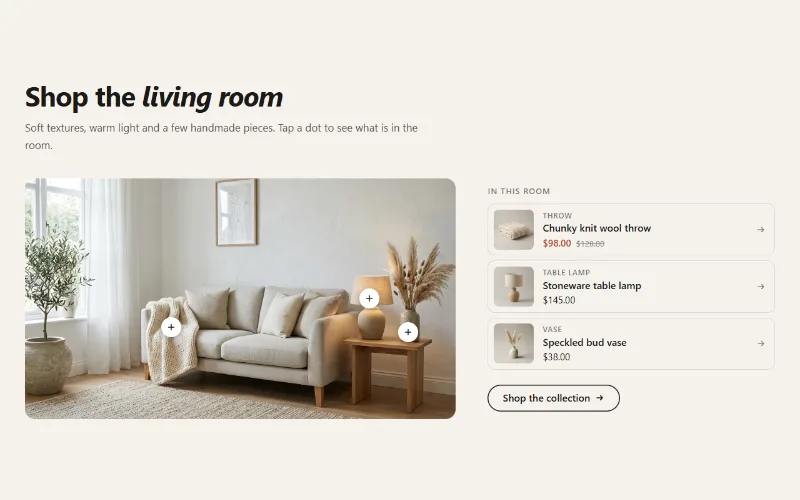
A lifestyle image with up to six product hotspots. Tapping a dot opens a small product card, and a product list beside the image shows the same items.
Hero and banners
Hero banner
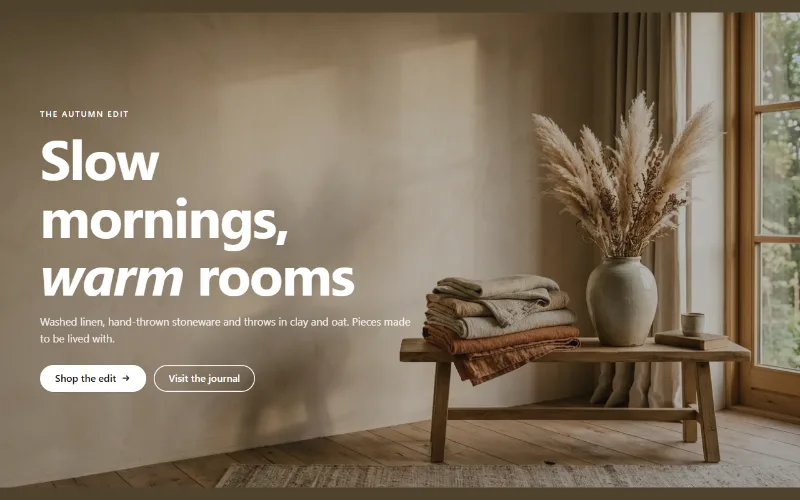
A full-bleed image banner with eyebrow, heading, text and two buttons over it, a separate mobile image, overlay, nine content positions and height per device.
