Stats counter
Up to 6 figures with label, description and icon that count up when scrolled into view. Row with dividers, cards, or big numbers beside the heading.
- Category
- Social proof and trust
- Use on
- Home, About, Landing pages
- Reads
- Content only
- Size
- 20 KB, small script included
- License
- MIT, free for client work
In short
Stats counter is a free Shopify section that shows up to six figures, such as pieces made or years in business, each with a label, optional description and icon. The numbers count up from zero when the section scrolls into view, while the final value stays in the HTML for search engines and visitors without JavaScript. It works in Online Store 2.0 themes without an app.
When to use it
- About page facts: years in business, products made, team size
- Home page trust row under the hero, with review score and orders shipped
- Wholesale or B2B landing page with stockists, countries shipped to or lead times
In the theme editor
- Heading, heading tag and size, text
- Up to 6 stats: number (with any prefix or suffix), label, optional description and icon
- Layout: row with dividers, cards, or big numbers beside the heading
- Number size (small to extra large), columns: 2–6 on desktop, 1–2 on mobile
- Alignment per device, page or full width, card corner radius
- Background color or gradient, text, number and card colors
- Top and bottom padding per device, show on desktop/mobile only, anchor ID
- Count up when scrolled into view, count duration
Files
sections/lib-stats-counter.liquidView the code
Written in plain Liquid, CSS and, where needed, a small script. No app, no dependencies.
How to add it to your theme
- Copy the section file into your theme’s sections folder, and any snippet it lists into snippets.
- In the theme editor, choose Add section and pick the one that starts with “Lib ·”.
- Replace the sample text with your store’s own, and set the colors to match your brand.
Questions
- Where do the numbers come from?
- You type them yourself in each stat block; the section does not pull data from your store. The figures in the demo and in the preset are sample content for a fictional store, so replace them with numbers you can back up.
- Which number formats can it count up?
- The first number in the text counts up and anything before or after it stays as typed, so 12,000+, 98%, $2.5M, 4.8/5 and 9 yrs all work. Thousands separators (comma, period, space or apostrophe) and decimals are kept. Text without a number is shown as is.
- Is the final number visible to Google and without JavaScript?
- Yes. The HTML contains the value exactly as you typed it. A small custom element resets it to zero only in the browser, then counts up with requestAnimationFrame once at least 30% of the stats are on screen, and ends on your original text.
- What about visitors who prefer reduced motion?
- When the device asks for reduced motion, the script does nothing and the final numbers show straight away. You can also switch the count-up off, or set its duration between 1 and 4 seconds.
- Does the layout jump while the numbers count?
- No. Each number keeps the width of its final value while it counts, and digits use tabular figures. Numbers also shrink with narrow columns so a figure like 12,000+ stays on one line.
Before you publish
- The text in the demos is sample content. Replace it with facts about your own store before you publish.
- Animations are switched off for visitors who ask for reduced motion.
- Every file is checked with Shopify Theme Check before it is published here.
Need it adapted to your theme, or a section that isn’t here? See Shopify theme development.
More sections
Social proof and trust
Logo cloud
A static grid or row of press, partner or stockist logos with grayscale-to-color hover, separator lines or cards, and logo height per device.
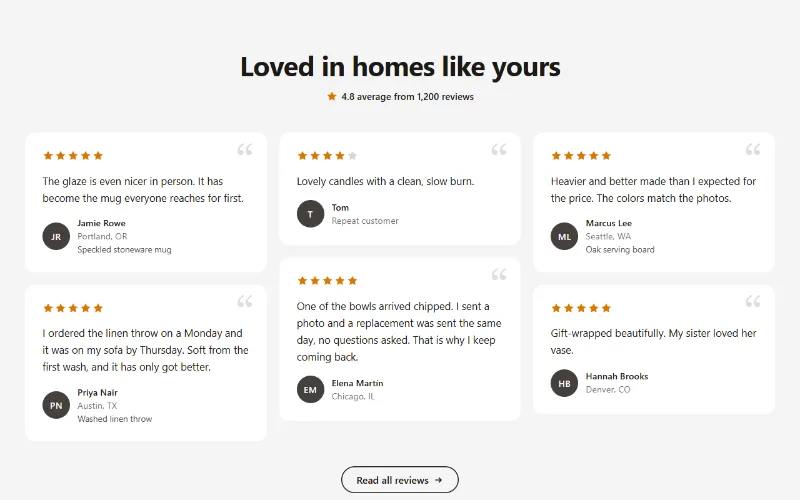
Social proof and trust
Testimonials
Customer quotes with star ratings, names and initials avatars in a grid, a masonry wall or a swipeable row with arrow buttons.
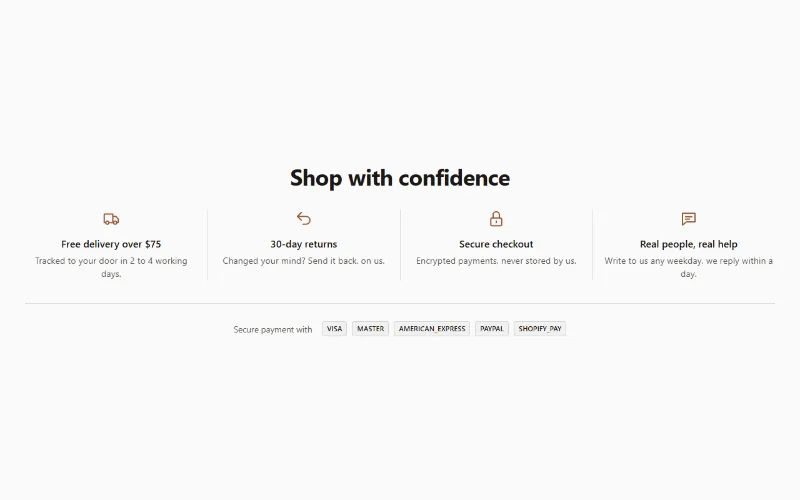
Social proof and trust
Trust badges
Row of trust points (delivery, returns, secure checkout) with line icons, short text and links, plus your store's accepted payment icons.
