Countdown banner
Sale or launch banner with a live countdown to a set date and time: bar, banner or split layout, background image per device and a chosen end state.
- Category
- Conversion and offers
- Use on
- Home, Collection, Landing pages
- Reads
- Content only
- Size
- 35 KB, small script included
- License
- MIT, free for client work
In short
Countdown banner is a free Shopify section that counts down to an end date and time you set, beside a heading, text and button, as a slim bar, an image banner or a split layout. The deadline is fixed to a UTC offset so every visitor sees the same end moment, and it works in Online Store 2.0 themes without an app.
When to use it
- Seasonal sale banner at the top of the home page
- Product drop or pre-order deadline on a collection or landing page
- A slim bar for a free-shipping cut-off before a holiday
In the theme editor
- Heading, heading tag and size, text, button with style and new tab
- End date, end time and UTC offset; show seconds
- Labels for days, hours, minutes and seconds; end date prefix
- At zero: hide the section, show a message, or keep 00
- Layout: inline bar, banner over image or color, or split image and text (image left or right)
- Separate desktop and mobile image with overlay opacity; content position on mobile
- Digit style: boxes or plain with colons; alignment per device
- Background color or gradient, text and accent colors
- Top and bottom padding per device, show on desktop/mobile only, anchor ID, digit animation toggle
Files
sections/lib-countdown-banner.liquidView the code
snippets/lib-button.liquidView the code
snippets/lib-image.liquidView the code
Written in plain Liquid, CSS and, where needed, a small script. No app, no dependencies.
How to add it to your theme
- Copy the section file into your theme’s sections folder, and any snippet it lists into snippets.
- In the theme editor, choose Add section and pick the one that starts with “Lib ·”.
- Replace the sample text with your store’s own, and set the colors to match your brand.
Questions
- Which time zone does the countdown use?
- You enter the end date (YYYY-MM-DD) and time (HH:MM) and choose the UTC offset they are in. The timer ends at that same moment for every visitor, wherever they are. The offset does not change with daylight saving time, so pick the one that applies on the end date.
- What happens when the timer reaches zero?
- You choose: hide the section, show an ended message, or keep showing zeros. The section also compares the end date with the time the page is rendered, so an offer that has already ended does not flash a timer before it disappears. In the theme editor a hidden countdown stays visible with a note, so you can still edit it.
- What do visitors see without JavaScript?
- The heading, text, button and the end date as text, for example "Ends 31 December", with dashes in place of the digits. A small custom element starts the timer and updates it every second, or every minute when seconds are hidden.
- Is the countdown accessible?
- The ticking digits are hidden from screen readers. Instead they read a text line with the end date and the days, hours and minutes left, which the timer rewrites once a minute rather than every second. The digit animation is off when the visitor prefers reduced motion or when you turn it off.
Before you publish
- The text in the demos is sample content. Replace it with facts about your own store before you publish.
- Animations are switched off for visitors who ask for reduced motion.
- Every file is checked with Shopify Theme Check before it is published here.
Need it adapted to your theme, or a section that isn’t here? See Shopify theme development.
More sections
Conversion and offers
Announcement bar
Slim bar with up to six messages that rotate with a fade or slide, optional arrows, icons, links and a close button that remembers each campaign.

Hero and banners
Hero banner
A full-bleed image banner with eyebrow, heading, text and two buttons over it, a separate mobile image, overlay, nine content positions and height per device.
Hero and banners
Hero slideshow
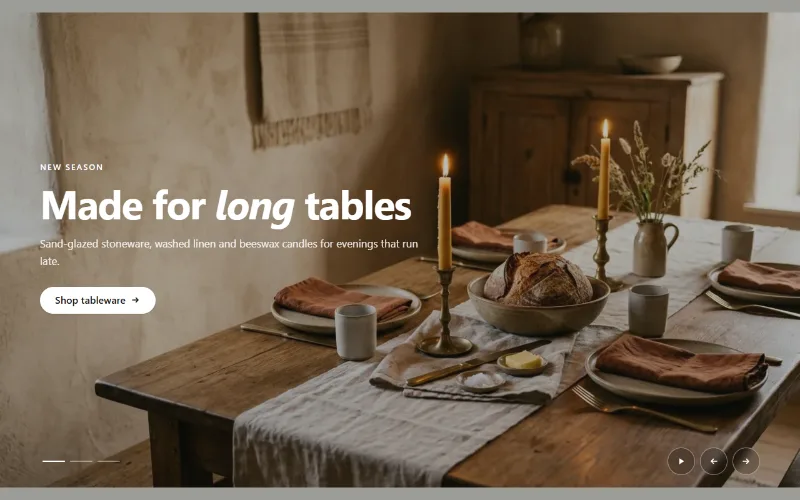
A full-width hero slideshow of up to six slides, each with its own desktop and mobile image, overlay, text and button. Swipe, autoplay, arrows and dots.
