Before / after slider
Two photos in one frame with a draggable divider, so shoppers can compare before and after. Keyboard and screen reader friendly, with separate mobile images.
- Category
- Product page
- Use on
- Product, Home, Landing pages
- Reads
- Content only
- Size
- 34 KB, small script included
- License
- MIT, free for client work
In short
Before / after slider is a free Shopify section that stacks two photos in one frame and lets shoppers drag a divider to compare them, by mouse, touch or keyboard. It takes separate mobile images, a horizontal or vertical split and a heading with text and a button, and works in Online Store 2.0 themes without an app.
When to use it
- Product page for cleaning, care or restoration products, showing an item before and after treatment
- Landing page for a repair, refinishing or upcycling service
- Home page block comparing a room before and after styling with the store's products
In the theme editor
- Heading, heading tag and size, text, one button (solid, outline or text link)
- Before and after image, each with an optional mobile version and its own focal point
- Image shape per device (adapt, square, portrait, landscape, wide) and corner radius
- Divider left-to-right or top-to-bottom, start position, handle style (circle, arrows or line)
- Before and after labels: text, show or hide, top or bottom
- Layout: text above a full-width image, or image beside text (left or right); order on mobile
- Text alignment per device, page or full width
- Background color or gradient, text, accent, handle and label colors
- Top and bottom padding per device, show on desktop/mobile only, anchor ID
Files
sections/lib-before-after.liquidView the code
snippets/lib-image.liquidView the code
snippets/lib-button.liquidView the code
Written in plain Liquid, CSS and, where needed, a small script. No app, no dependencies.
How to add it to your theme
- Copy the section file into your theme’s sections folder, and any snippet it lists into snippets.
- In the theme editor, choose Add section and pick the one that starts with “Lib ·”.
- Replace the sample text with your store’s own, and set the colors to match your brand.
Questions
- Can people use it without a mouse?
- Yes. The divider is driven by a native range input, so Tab focuses it and the arrow, Home and End keys move it. Screen readers hear the label names and how much of each image is showing. Mouse and touch drags work anywhere on the image.
- What happens if the two photos have different shapes?
- Both images fill the same frame and are cropped to it, so they always line up in size. Choose square, portrait, landscape, wide or adapt (which takes the after image's shape), separately for desktop and mobile. Photos taken from the same spot give the cleanest comparison.
- What do shoppers see if JavaScript is off?
- Only the after image, in full. The before image, divider and handle appear once the small built-in script runs.
- Can I use different images on mobile?
- Yes. Set a mobile before image and a mobile after image and they are shown below 750px, each with its own focal point. Set both or neither so the pair still matches.
- Does it slow the page down?
- The script is under 100 lines of vanilla JavaScript with no libraries. When the section is one of the first two on a page its images load eagerly; further down they load lazily.
Before you publish
- The text in the demos is sample content. Replace it with facts about your own store before you publish.
- Animations are switched off for visitors who ask for reduced motion.
- Every file is checked with Shopify Theme Check before it is published here.
Need it adapted to your theme, or a section that isn’t here? See Shopify theme development.
More sections
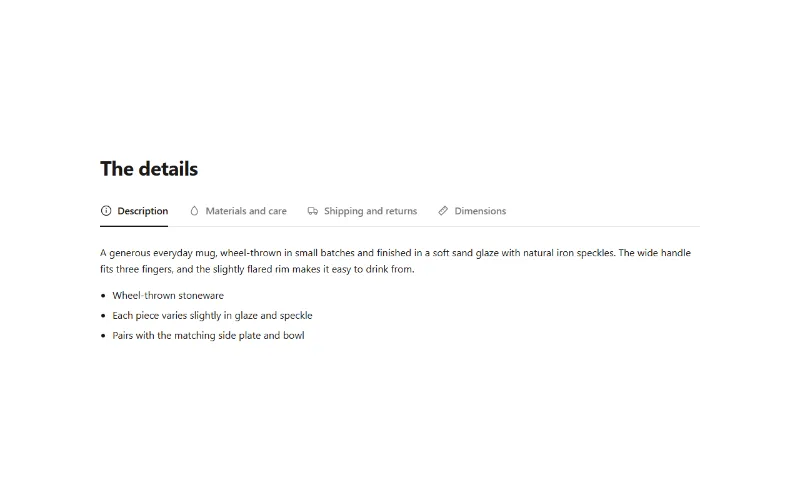
Product page
Product tabs
Up to 6 product info tabs from your own text, the product description, a page or a metafield. Tabs on desktop, accordion on mobile.
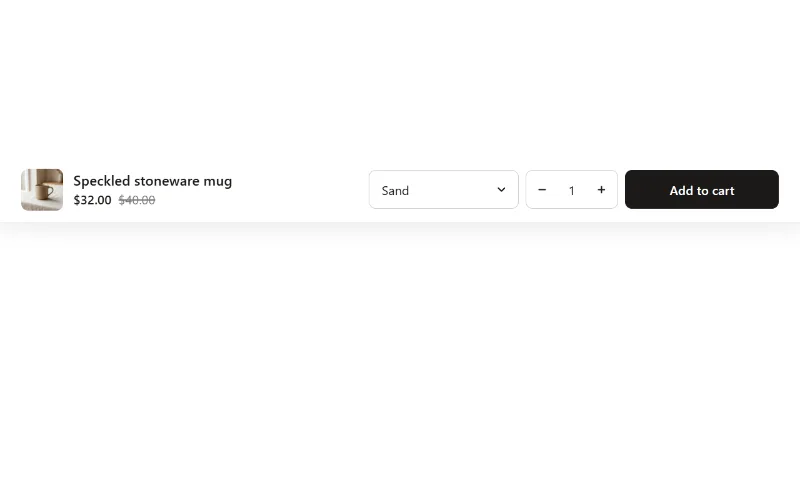
Product page
Sticky add to cart
Add to cart bar fixed to the bottom or top of the screen that appears once the main buy button scrolls away, with variant select and quantity.

Hero and banners
Hero banner
A full-bleed image banner with eyebrow, heading, text and two buttons over it, a separate mobile image, overlay, nine content positions and height per device.
