Image with text
An image beside a heading, text, up to four icon points and two buttons. Set image width, side and shape; the text can sit in a card that overlaps the image.
- Category
- Content and storytelling
- Use on
- Home, Product, Collection, About, Any page
- Reads
- Content only
- Size
- 30 KB, no JavaScript
- License
- MIT, free for client work
In short
Image with text is a free Shopify section that places an image beside a heading, rich text, a short icon list and up to two buttons. The image can take a third, half or two thirds of the width on either side, the text can sit in a card that overlaps the image, and it works in Online Store 2.0 themes without an app.
When to use it
- Brand story or studio introduction on the home or About page
- Product page block explaining materials, care or how an item is made
- Collection page intro with a lifestyle photo and links to related collections
In the theme editor
- Eyebrow, heading, heading tag and size, rich text
- Desktop and mobile image, each with its own focal point; shape per device including arch
- Image left or right at one third, half or two thirds width; corner radius
- Text box: none or card, with card color and overlap onto the image on desktop
- Up to 4 icon points: built-in icon or custom image, short text
- Two buttons: solid, outline or text link, optional new tab
- Text alignment per device, vertical position, order on mobile, page or full width
- Background color or gradient, text, accent and text-on-accent colors
- Top and bottom padding per device, show on desktop/mobile only, anchor ID, fade in on scroll
Files
sections/lib-image-with-text.liquidView the code
snippets/lib-image.liquidView the code
snippets/lib-button.liquidView the code
Written in plain Liquid, CSS and, where needed, a small script. No app, no dependencies.
How to add it to your theme
- Copy the section file into your theme’s sections folder, and any snippet it lists into snippets.
- In the theme editor, choose Add section and pick the one that starts with “Lib ·”.
- Replace the sample text with your store’s own, and set the colors to match your brand.
Questions
- Can I show a different image on mobile?
- Yes. Add a mobile image and it is shown below 750px with its own focal point, and the mobile image shape (adapt, square, portrait, landscape or arch) is set separately from desktop. Without one, the desktop image is used everywhere.
- How many icon points can I add?
- Up to four. Each has one of eight built-in line icons or your own small image, plus a short line of text. They are output as a list under the body text.
- How does the overlapping card work?
- With the text box set to card, the card can slide up to 160px over the image on screens 990px and wider. Below that the image and card stack, and you choose whether the image or the text comes first on mobile.
- Does it use JavaScript?
- No. The optional fade-in uses CSS scroll-driven animation, runs only in browsers that support it and is skipped when the visitor prefers reduced motion. When the section is one of the first two on a page its image loads eagerly; further down it loads lazily.
Before you publish
- The text in the demos is sample content. Replace it with facts about your own store before you publish.
- Animations are switched off for visitors who ask for reduced motion.
- Every file is checked with Shopify Theme Check before it is published here.
Need it adapted to your theme, or a section that isn’t here? See Shopify theme development.
More sections
Content and storytelling
Feature cards
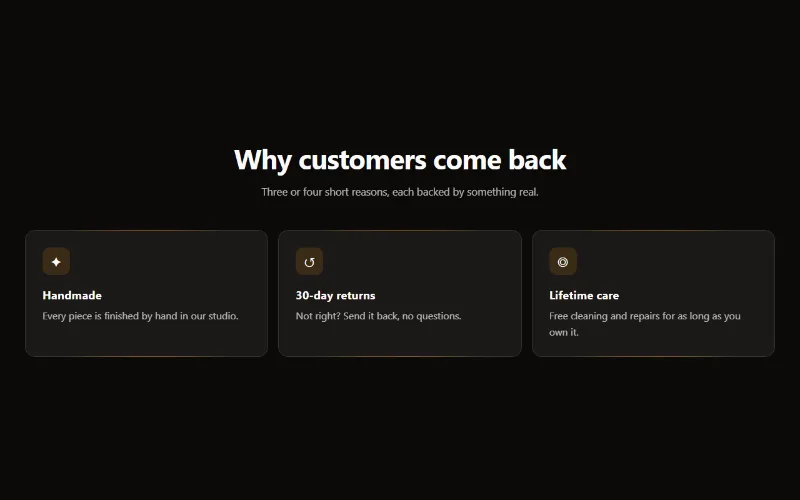
Two to four columns of cards with an icon, title and text. On desktop a soft glow follows the pointer; on touch screens the cards show without it.

Content and storytelling
Marquee
An endlessly scrolling strip of text, icons or logos. Use it as a ticker, an announcement band or a logo wall. Pure CSS motion with a pause button.
Content and storytelling
Multicolumn
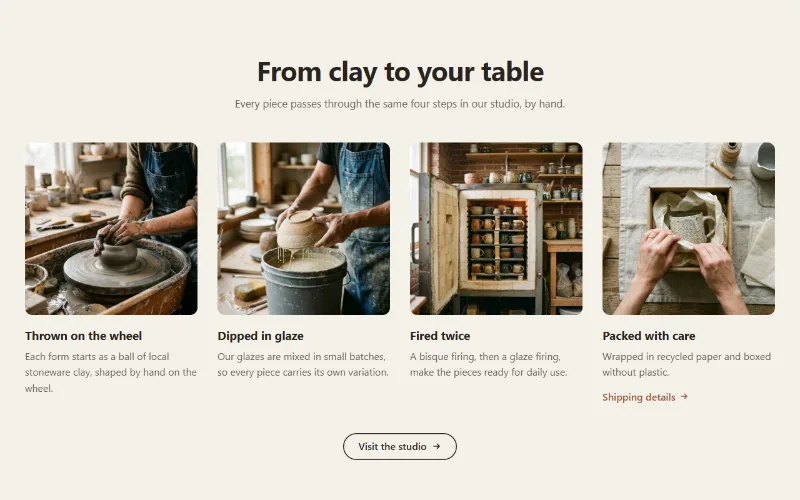
Up to 12 columns with image or icon, heading, text and link. 2 to 6 columns on desktop; one, two or a swipeable row on mobile. Plain, filled or outlined cards.
