Multicolumn
Up to 12 columns with image or icon, heading, text and link. 2 to 6 columns on desktop; one, two or a swipeable row on mobile. Plain, filled or outlined cards.
- Category
- Content and storytelling
- Use on
- Home, Product, About, Landing pages
- Reads
- Content only
- Size
- 29 KB, no JavaScript
- License
- MIT, free for client work
In short
Multicolumn is a free Shopify section that lays out up to twelve columns, each with an image or small icon, a heading, text and an optional link. You choose 2 to 6 columns on desktop, one column, two columns or a swipeable row on mobile, and a plain, filled or outlined card style. It is HTML and CSS only and works in Online Store 2.0 themes without an app.
When to use it
- A "how it's made" row on the home or about page, one column per step
- Product page benefits or care instructions with small icons
- Landing page that links to guides, services or collections, one column each
In the theme editor
- Heading, heading tag and size, text, optional button under the columns
- Up to 12 columns: image with separate mobile image, small icon or no media; heading, text, link with label
- Image shape (adapt, square, portrait, landscape, circle), full column width or small and centered
- Column style: none, filled card or outlined card; corner radius
- Columns: 2–6 on desktop; 1, 2 or a swipeable row on mobile; space between columns
- Heading and button alignment per device, column text alignment, page or full width
- Background color or gradient, text, card, accent and text-on-accent colors
- Top and bottom padding per device, show on desktop/mobile only, anchor ID
Files
sections/lib-multicolumn.liquidView the code
snippets/lib-image.liquidView the code
snippets/lib-button.liquidView the code
Written in plain Liquid, CSS and, where needed, a small script. No app, no dependencies.
How to add it to your theme
- Copy the section file into your theme’s sections folder, and any snippet it lists into snippets.
- In the theme editor, choose Add section and pick the one that starts with “Lib ·”.
- Replace the sample text with your store’s own, and set the colors to match your brand.
Questions
- How many columns can I add, and how do they wrap?
- Up to twelve column blocks. Set 2 to 6 columns per row on desktop; extra columns wrap to a new row. Between 750px and 989px the grid shows up to three columns. On mobile you choose one column, two columns or a swipeable row.
- Can each column have a different image on mobile?
- Yes. Each column has a desktop image and an optional mobile image shown below 750px, and each honours its own focal point from the theme editor. A column can also show a small icon (48px) or no media at all.
- How does the swipeable row work?
- On mobile the columns sit in a row that scrolls sideways with snap points, inside the section, so the page itself does not scroll horizontally. It uses CSS scroll snapping; the section has no JavaScript.
- How do links work in a column?
- Add a link and a label and the label shows under the text with an arrow. Add a link without a label and the column heading becomes the link. Either can open in a new tab.
- Will the images slow the page down?
- Images load lazily, except the first row when the section is one of the first two on the page. With a fixed image shape (square, portrait, landscape or circle) each image reserves its space, so the layout does not shift as images load.
Before you publish
- The text in the demos is sample content. Replace it with facts about your own store before you publish.
- Animations are switched off for visitors who ask for reduced motion.
- Every file is checked with Shopify Theme Check before it is published here.
Need it adapted to your theme, or a section that isn’t here? See Shopify theme development.
More sections
Content and storytelling
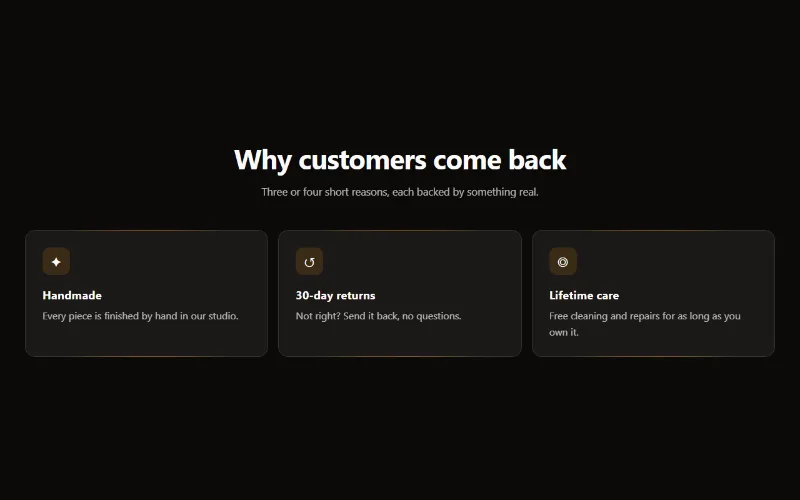
Feature cards
Two to four columns of cards with an icon, title and text. On desktop a soft glow follows the pointer; on touch screens the cards show without it.
Content and storytelling
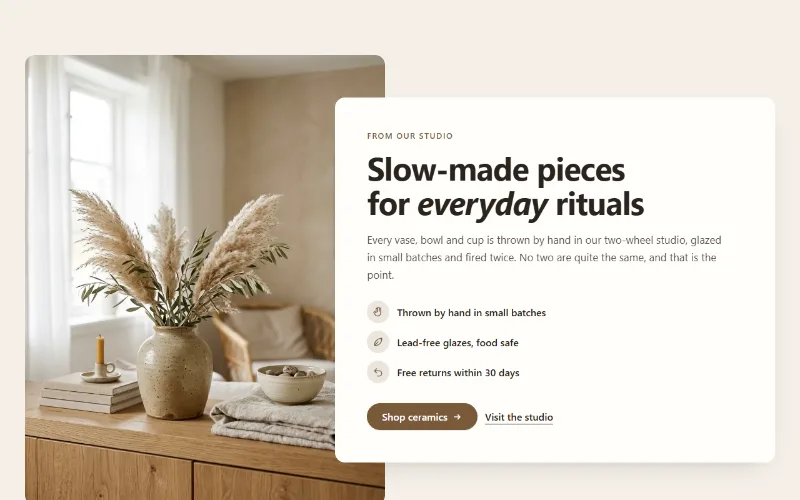
Image with text
An image beside a heading, text, up to four icon points and two buttons. Set image width, side and shape; the text can sit in a card that overlaps the image.
Content and storytelling
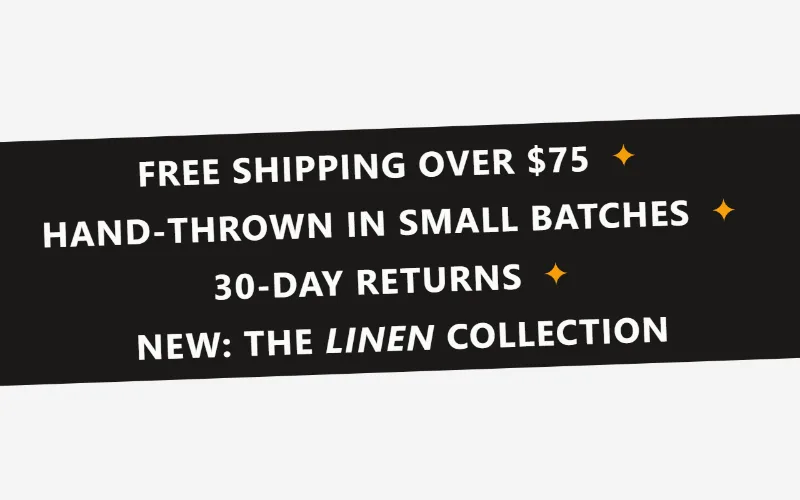
Marquee
An endlessly scrolling strip of text, icons or logos. Use it as a ticker, an announcement band or a logo wall. Pure CSS motion with a pause button.
