Newsletter popup
Email sign-up popup with an optional discount code that opens after a delay, on exit intent or on scroll, never on load. A small card on mobile; no app.
- Category
- Conversion and offers
- Use on
- Home, Collection, Product, Any page
- Reads
- Shopify customer form
- Size
- 25 KB, small script included
- License
- MIT, free for client work
In short
Newsletter popup is a free Shopify section that offers a newsletter sign-up, with an optional image and discount code, in a popup that opens after a delay, when the pointer leaves the window on desktop, or after the shopper scrolls part of the page, and never as the page loads. It uses Shopify's own customer form, so each email is saved as a customer tagged "newsletter" plus a tag you choose. On phones it is a small card at the bottom of the screen rather than a full-screen overlay; on desktop it is a centered dialog or a corner card. It closes with a button, Esc or a click outside, stays away for the number of days you set and for good after a sign-up, and shows at most once per visit. The discount itself is created in Shopify; the section only shows the code.
When to use it
- A welcome offer, such as a first-order code, for new visitors
- Collecting emails before a launch or a seasonal sale
- An exit-intent reminder on collection and product pages
In the theme editor
- Heading (H2, H3 or paragraph tag, three sizes), text and an optional image for the desktop dialog
- Optional discount code with editable label, copy button and copied message
- Shopify customer form: field label, placeholder, button, extra customer tag, consent text, success message
- Triggers: after a delay (10–120 s), on exit intent (desktop) and/or after scrolling a share of the page
- Stay closed for 1–90 days after closing; a sign-up hides it for a year
- Centered dialog or corner card on desktop, always a small bottom card on mobile; text alignment per device; show on desktop/mobile only
- Background color or gradient, text, accent, text on accent and page dimming
- Fade in (off under reduced motion)
Files
sections/lib-newsletter-popup.liquidView the code
Written in plain Liquid and CSS with a small script. No app, no dependencies.
How to add it to your theme
- Copy the section file into your theme’s sections folder, and any snippet it lists into snippets.
- In the theme editor, choose Add section and pick the one that starts with “Lib ·”.
- Replace the sample text with your store’s own, and set the colors to match your brand.
Questions
- Will it hurt SEO or annoy mobile shoppers?
- It never opens as the page loads, so the content a visitor came for shows first. Google warns against popups that cover the main content right after a visitor arrives from search, mostly on mobile; below 750px this section is a small card at the bottom of the screen that leaves the page readable and usable, not a full-screen interstitial.
- Where do the emails go?
- To your Shopify customers, through Shopify's customer form, tagged "newsletter" plus the extra tag you set ("popup" by default) so you can tell these sign-ups apart. Shopify Email, or an email app that syncs customers, can then send to them.
- Does the discount code work by itself?
- No. Create the discount in Shopify under Discounts; the section only shows the code you type, with a copy button.
- How often does it show?
- At most once per visit. After a shopper closes it, it stays away for the number of days you set (1 to 90); after a sign-up it stays away for a year. If you change the heading or the code, it counts as a new offer and shows again to people who closed the old one. Only the choice is stored, in the shopper's browser; no personal data.
- Is it accessible?
- On desktop it is a native modal dialog labelled by its heading: focus moves into it, Esc or the close button closes it, and focus goes back to where it was. The mobile and corner cards close with Esc too. The field has a real label, every word is a setting, and the fade-in is off when the shopper prefers reduced motion. Without JavaScript the popup doesn't appear at all, so it never blocks the page.
- How do I edit it in the theme editor?
- It opens while the section is selected in the editor and closes when you select something else; the timers don't run in the editor.
Before you publish
- The text in the demos is sample content. Replace it with facts about your own store before you publish.
- Animations are switched off for visitors who ask for reduced motion.
- We check every file with Shopify Theme Check before publishing it here.
Need it adapted to your theme, or a section that isn’t here? See Shopify theme development.
More sections
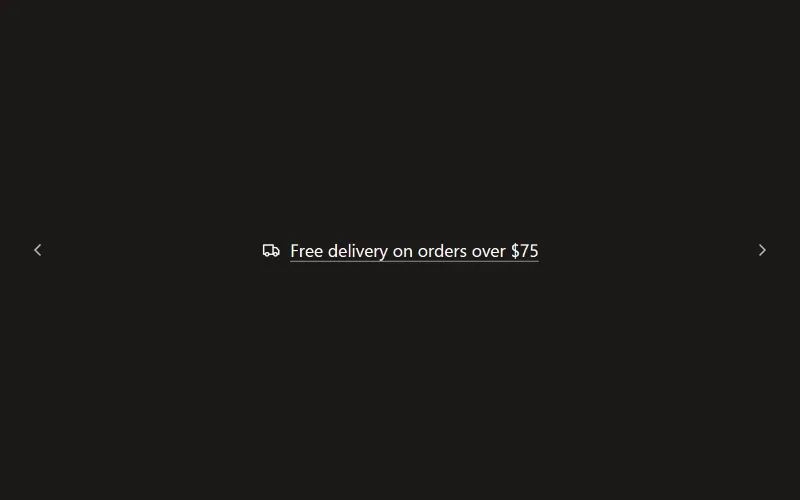
Conversion and offers
Announcement bar
Slim bar with up to six messages that rotate with a fade or slide, optional arrows, icons, links and a close button that remembers each campaign.
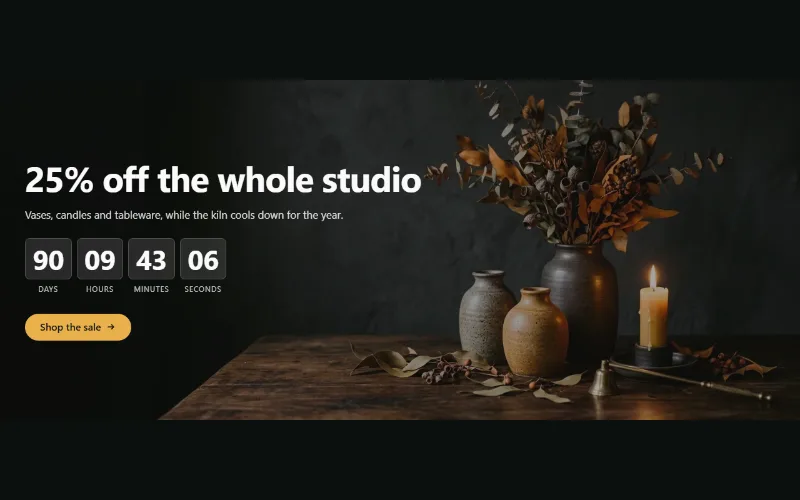
Conversion and offers
Countdown banner
Sale or launch banner with a live countdown to a set date and time: bar, banner or split layout, background image per device and a chosen end state.
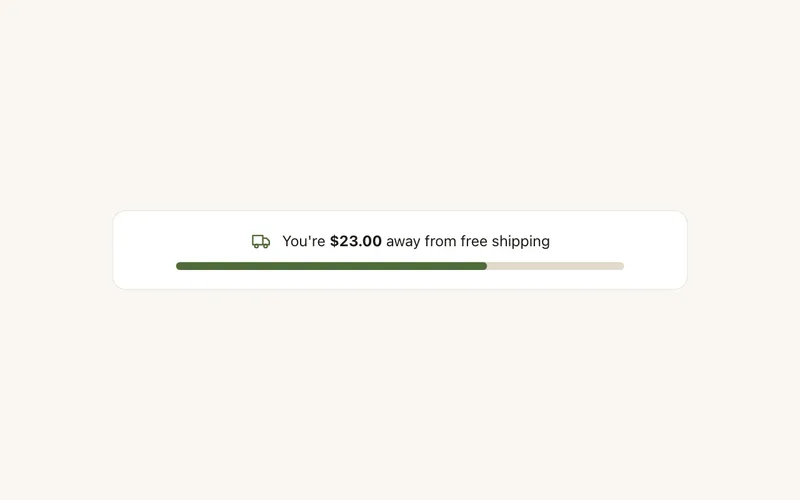
Conversion and offers
Free shipping bar
"You're $23 away from free shipping" with a progress bar, from the live cart and your threshold. Updates with cart drawers, per-currency thresholds, no app.
