Collection banner
Collection page header with the collection's title, description, image and product count, over the image or beside it, plus an optional breadcrumb.
- Category
- Hero and banners
- Use on
- Collection, Landing pages, Any page
- Reads
- The page's collection or one you pick
- Size
- 23 KB, no JavaScript
- License
- MIT, free for client work
In short
Collection banner is a free Shopify section for the top of collection pages. It reads the collection itself, so its title, description, image and product count stay in step with Shopify admin, and shows them over the image, beside it or as text only, with an optional breadcrumb. A separate mobile image, nine text positions and an H1 title by default make it a complete collection header in Online Store 2.0 themes without an app or JavaScript.
When to use it
- Header of every collection page, filled from the collection's own title, description and image
- Seasonal or campaign collection with its own photo and a separate mobile crop
- A category landing page that points to one collection, using the collection picker
In the theme editor
- Collection picker (empty on collection templates), title tag (H1 by default) and size
- Collection description, product count with its words, breadcrumb with home link and screen-reader label
- Collection image or your own desktop and mobile image
- Text over the image (nine positions per device, overlay strength), image beside the text (left or right) or text only
- Small, medium or large height, page or full width, text alignment per device
- Background or gradient, text, text over the image and accent colors
- Top and bottom padding per device, show on desktop/mobile only, anchor ID, slow zoom and fade on load
Files
sections/lib-collection-banner.liquidView the code
snippets/lib-image.liquidView the code
Written in plain Liquid and CSS, with no JavaScript. No app, no dependencies.
How to add it to your theme
- Copy the section file into your theme’s sections folder, and any snippet it lists into snippets.
- In the theme editor, choose Add section and pick the one that starts with “Lib ·”.
- Replace the sample text with your store’s own, and set the colors to match your brand.
Questions
- Where do the title, description and image come from?
- From the collection in Shopify admin (Products > Collections). On a collection template the section uses the page's collection; anywhere else you pick one. You can replace the collection image with your own desktop and mobile images in the section settings.
- Why is the title an H1?
- On a collection page the collection name is the page's main heading, which helps search engines and screen readers. If your theme's collection template already has an H1, set the title tag to H2 so the page keeps one H1.
- What if a collection has no image?
- The banner falls back to text only, with the title, count and description on the section background, so collections without a photo still get a tidy header.
- Does the product count update by itself?
- Yes. It is Shopify's products_count for the collection, read when the page renders, and the words for one and several products are settings you can translate.
Before you publish
- The text in the demos is sample content. Replace it with facts about your own store before you publish.
- Animations are switched off for visitors who ask for reduced motion.
- We check every file with Shopify Theme Check before publishing it here.
Need it adapted to your theme, or a section that isn’t here? See Shopify theme development.
More sections
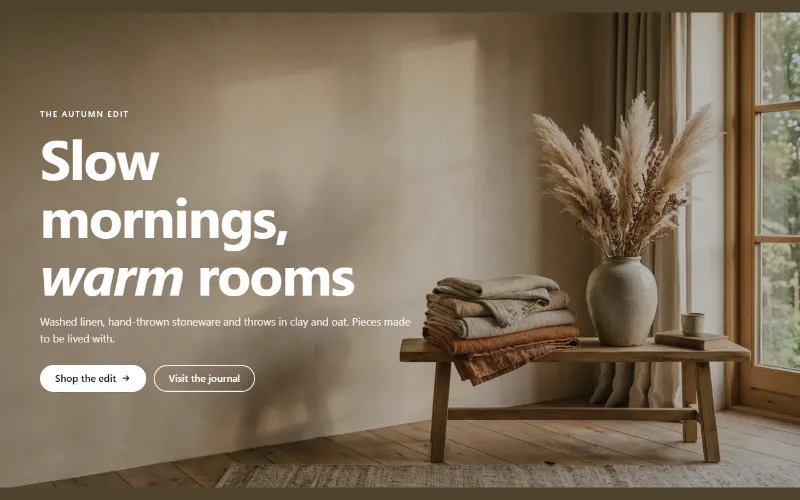
Hero and banners
Hero banner
A full-bleed image banner with eyebrow, heading, text and two buttons over it, a separate mobile image, overlay, nine content positions and height per device.
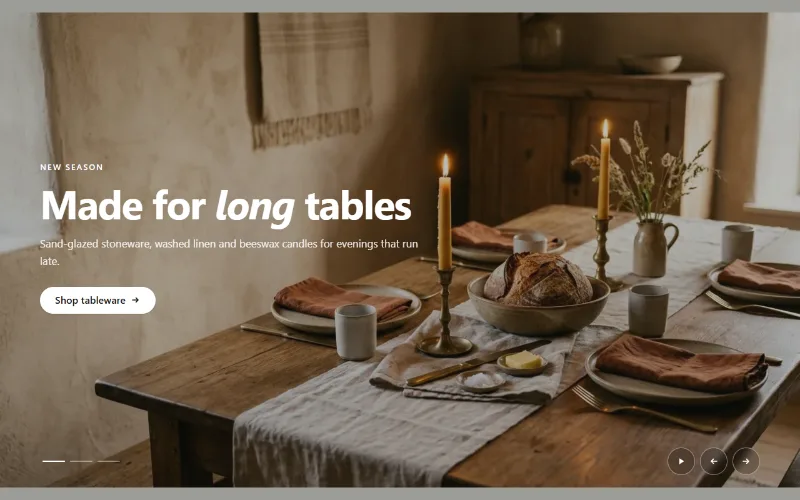
Hero and banners
Hero slideshow
A full-width hero slideshow of up to six slides, each with its own desktop and mobile image, overlay, text and button. Swipe, autoplay, arrows and dots.
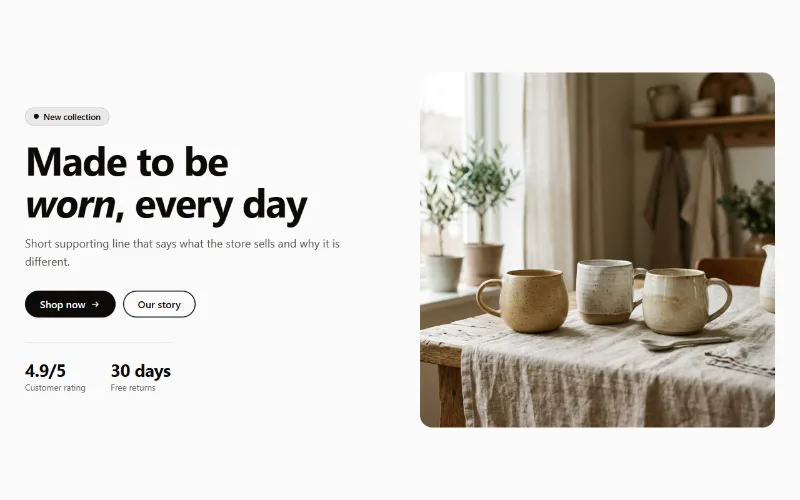
Hero and banners
Hero split
A split hero: badge, headline, supporting text, two buttons, up to three short stats and an image on either side, with a separate image for mobile.
