Recently viewed products
Show each shopper the products they viewed, newest first. Handles stay in their browser; prices and stock come live from your store. No app, no tracking.
- Category
- Product and collection discovery
- Use on
- Product, Home, Collection, Cart
- Reads
- Product handles in the shopper's browser (localStorage), current product data from the store
- Size
- 34 KB, small script included
- License
- MIT, free for client work
In short
Recently viewed products is a free Shopify section that shows each shopper the products they looked at, newest first. On a product page it notes the product's handle in the shopper's own browser (localStorage); wherever the section sits it reads those handles and asks your store for each product's current title, image, price and availability, so a sold-out or discounted product shows as it is now. Nothing is sent to an app or a tracking service, deleted products drop out, a "Clear history" button empties the list, and the section stays hidden until there is something to show. It works in Online Store 2.0 themes without an app.
When to use it
- Under the product details, so shoppers can jump back to the products they were comparing
- On the cart page or the home page, to bring back products a returning visitor looked at
- On a 404 or search page, as a short way back to products the shopper already knows
In the theme editor
- Heading (tag H1–H3 or paragraph, three sizes) and intro text
- Clear history button and the message shown after clearing
- Show the list on product pages, or only note products there
- Products to show (2–12), image shape, plain or card style, corner radius, vendor
- Sale and sold-out badges, screen-reader price labels
- Columns on desktop (2–6) and mobile (1–2), grid or swipeable row on mobile
- Page or full width, heading alignment per device
- Background color or gradient, text, accent, text on accent and card colors
- Top and bottom padding per device, show on desktop/mobile only, anchor ID, fade cards in
Files
sections/lib-recently-viewed.liquidView the code
snippets/lib-product-card.liquidView the code
snippets/lib-image.liquidView the code
Written in plain Liquid and CSS with a small script. No app, no dependencies.
How to add it to your theme
- Copy the section file into your theme’s sections folder, and any snippet it lists into snippets.
- In the theme editor, choose Add section and pick the one that starts with “Lib ·”.
- Replace the sample text with your store’s own, and set the colors to match your brand.
Questions
- Where is the viewing history stored?
- Only in the shopper's browser, in localStorage under one key, as a list of product handles (up to 24). No name, email, cookie ID or anything else is kept, and nothing is sent to Lintel or an app. Clearing site data or pressing the section's "Clear history" button removes it.
- Do I need to add it to the product template?
- Yes. The section notes a product only on product pages, so add it to the product template, then to any other template where you want the list. If you don't want the list on product pages, turn off "Show the list on product pages": the product is still noted there.
- Are the prices and stock up to date?
- Yes. For every handle the section asks your store for the product's current data (/products/<handle>.js), so prices, compare-at prices and sold-out state are what your store shows today. Products you deleted drop out of the list.
- Does it need a cookie banner or consent?
- It keeps product handles on the device for the shopper's own use, not to track or profile them, which privacy rules usually treat as functional storage. Your obligations depend on your markets and your privacy policy, so check with your own advice if you're unsure.
- What do shoppers see before they have viewed anything?
- Nothing: the section stays hidden until at least one product can be shown, and without JavaScript it never appears. In the theme editor it shows placeholder cards so you can style it.
Before you publish
- The text in the demos is sample content. Replace it with facts about your own store before you publish.
- Animations are switched off for visitors who ask for reduced motion.
- We check every file with Shopify Theme Check before publishing it here.
Need it adapted to your theme, or a section that isn’t here? See Shopify theme development.
More sections
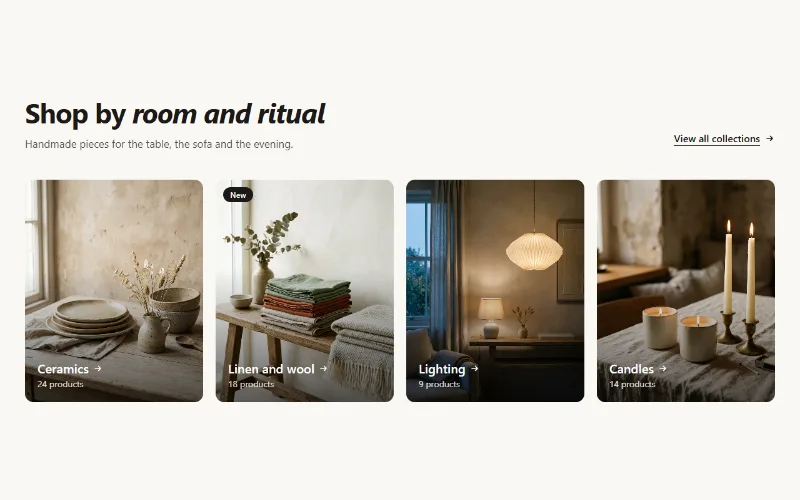
Product and collection discovery
Collection cards
Up to eight collection cards with image, title, label and product count. Text over the image or below it, 2 to 5 columns, or a swipeable row on mobile.
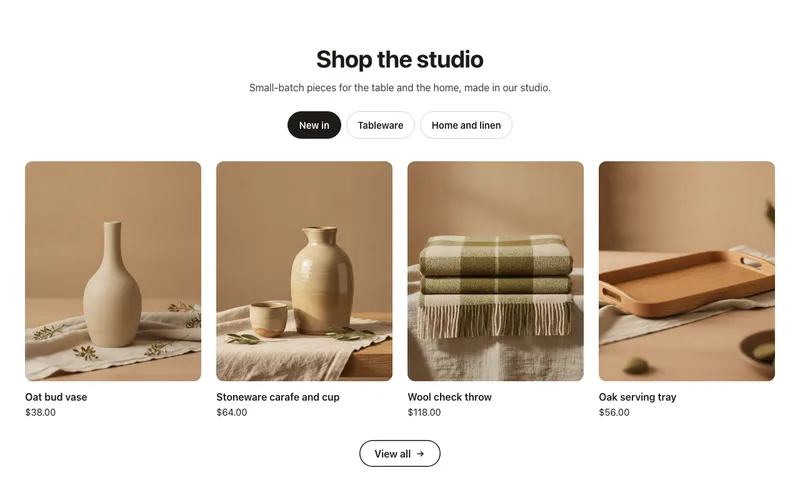
Product and collection discovery
Collection tabs
A product grid with tabs: New in, Best sellers, Sale or any collections in one section, each with a View all link. Accessible tabs, works without JavaScript.
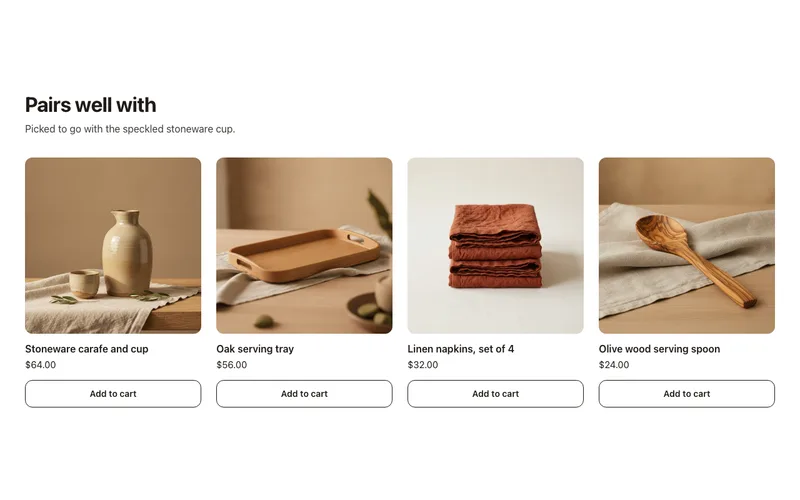
Product and collection discovery
Complementary products
"Pairs well with" cards on product pages from Shopify's complementary product recommendations, set in Search & Discovery, with quick add. No app fees.
