Comparison table
Compare 2 to 4 products or plans by feature rows with check, cross and text cells, a highlighted column and a sticky feature column on mobile.
- Category
- Product page
- Use on
- Product, Collection, Landing pages, Any page
- Reads
- Products (optional)
- Size
- 29 KB, no JavaScript
- License
- MIT, free for client work
In short
Comparison table is a free Shopify section that puts two to four products or plans side by side. Each column can take a product, which supplies its image, title, price and link, or your own image, title and price text; each row holds a feature and one value per column, where yes, no and a dash become icons. It is a real HTML table with a sticky feature column on small screens, needs no JavaScript and works in Online Store 2.0 themes without an app.
When to use it
- Helping shoppers pick between product sizes, bundles or sets on a collection or landing page
- Comparing subscription or service plans with your own price text
- Showing what a premium version adds over the standard one on a product page
In the theme editor
- Heading, heading tag and size, intro text
- Up to 4 Column blocks: product or custom image, title and price text, highlight with your own label, button with style and new tab
- Row blocks: feature, short note and one value per column; yes, no and dash become icons
- Row group heading blocks
- Show or hide images and prices, image shape, feature column heading
- Screen-reader texts for the table, icons and prices, and the From prefix
- Heading alignment per device, page or full width
- Background color or gradient, text, accent, table, line, highlight, yes and no colors
- Top and bottom padding per device, show on desktop/mobile only, anchor ID, fade rows in on scroll
Files
sections/lib-comparison-table.liquidView the code
snippets/lib-button.liquidView the code
Written in plain Liquid and CSS, with no JavaScript. No app, no dependencies.
How to add it to your theme
- Copy the section file into your theme’s sections folder, and any snippet it lists into snippets.
- In the theme editor, choose Add section and pick the one that starts with “Lib ·”.
- Replace the sample text with your store’s own, and set the colors to match your brand.
Questions
- How do I fill in the rows?
- Add one Column block per product or plan, then a Row block per feature. In a row, type one value per column in the same order, separated by a vertical bar (|), for example "yes | yes | no" or "2 | 4 | 6". yes, no and a dash (-) become a check, a cross and a dash; anything else shows as typed. Row group heading blocks split the table into labelled groups.
- Does it read prices from my products?
- Yes. Pick a product in a column and the section shows its featured image, title and price, with the compare-at price struck through when it is on sale and a "From" prefix when variant prices differ. The button links to the product unless you set another link. Price text in the column replaces the product price, which is useful for plans.
- How does it work on mobile?
- The table keeps its rows and columns and scrolls sideways inside its own area, which is labelled for screen readers and reachable with the keyboard. The feature column stays fixed on the left while the products scroll, and the page itself never scrolls sideways.
- Is it accessible?
- It is a real table with column and row headers, so screen readers announce the product and feature for each cell. Check, cross and dash icons have screen-reader text you set, such as Included and Not included, and the sale and regular prices are labelled.
- Can I highlight one column?
- Yes. Turn on Highlight this column and add your own label, for example "Our pick". The column gets a tinted background, the label sits above it and an outline button becomes solid. The label is your own words; the section never adds ratings or popularity claims.
Before you publish
- The text in the demos is sample content. Replace it with facts about your own store before you publish.
- Animations are switched off for visitors who ask for reduced motion.
- We check every file with Shopify Theme Check before publishing it here.
Need it adapted to your theme, or a section that isn’t here? See Shopify theme development.
More sections
Product page
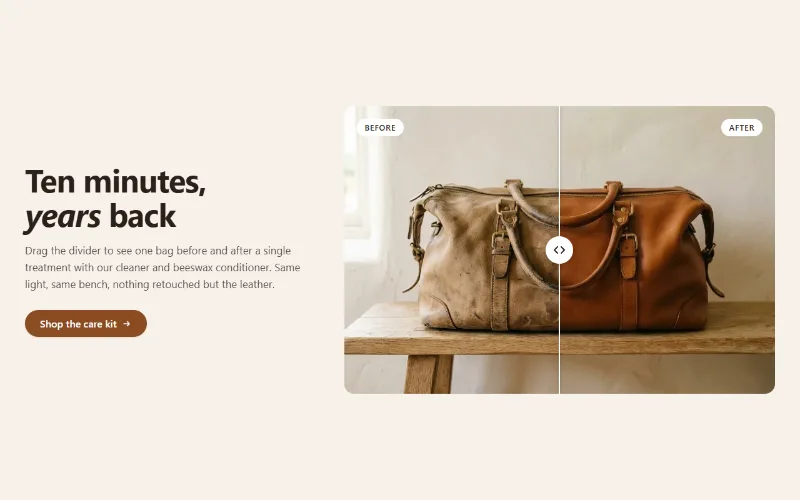
Before / after slider
Two photos in one frame with a draggable divider, so shoppers can compare before and after. Keyboard and screen reader friendly, with separate mobile images.
Product page
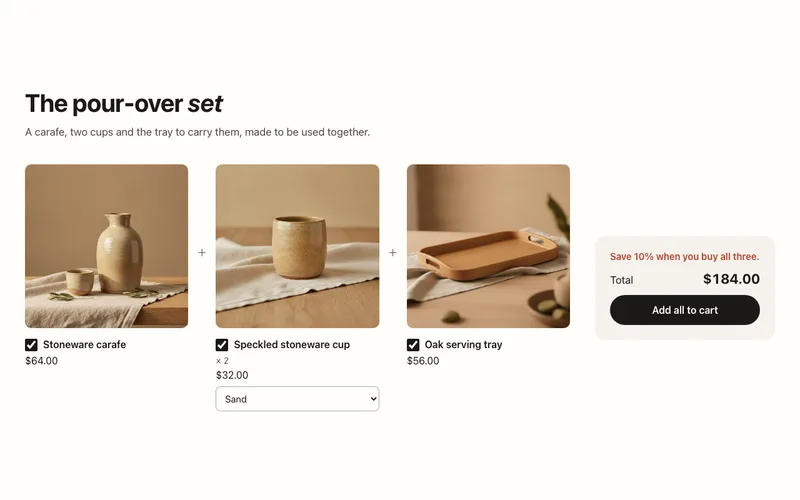
Product bundle
Buy-it-together bundle of two or three products with variant menus, a live total and one Add all to cart button through the Cart AJAX API.
Product page
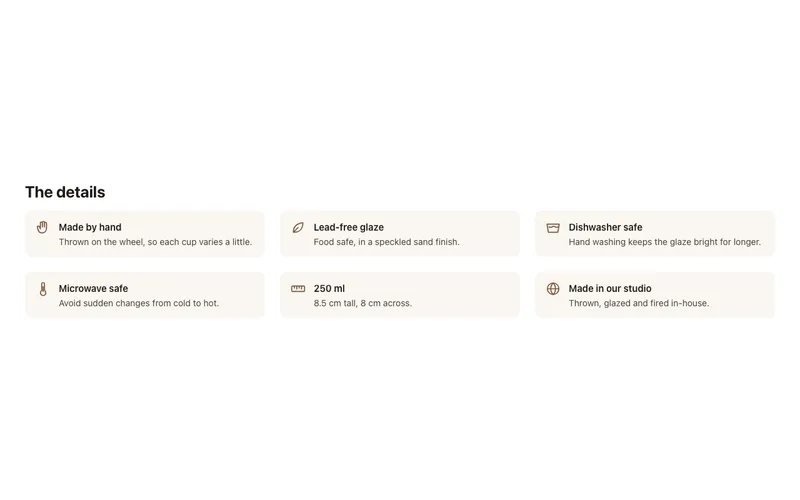
Product highlights
Icon points under the buy box for material, care, origin, size or warranty, typed or linked to product metafields. Empty points hide per product.
