Product bundle
Buy-it-together bundle of two or three products with variant menus, a live total and one Add all to cart button through the Cart AJAX API.
- Category
- Product page
- Use on
- Product, Landing pages, Home, Any page
- Reads
- Up to three products you pick
- Size
- 27 KB, small script included
- License
- MIT, free for client work
In short
Product bundle is a free Shopify section that offers two or three products you pick as a set to buy together, each with its image, price and variant menu, a running total and one Add all to cart button. Shoppers can leave a product out with its checkbox; the button adds the chosen variants in one request to Shopify's Cart AJAX API. The section shows normal prices: any bundle discount is an automatic discount you set up in Shopify. It works in Online Store 2.0 themes without an app.
When to use it
- Frequently bought together set under a product, such as a carafe with cups and a tray
- A starter kit or gift set on a landing page that adds every piece in one click
- Pairing an accessory with the main product without a bundle app
In the theme editor
- Two or three product blocks: product picker, quantity, included by default
- Heading with tag and size, text and an optional discount note
- Editable words: Add all to cart, Total, Sold out, messages and screen-reader labels
- After adding: go to the cart or stay and show a message
- Square or portrait images, page or full width, heading alignment per device
- Background or gradient, text, button, button text, card and sale colors
- Top and bottom padding per device, show on desktop/mobile only, anchor ID, fade in on load
Files
sections/lib-product-bundle.liquidView the code
Written in plain Liquid and CSS with a small script. No app, no dependencies.
How to add it to your theme
- Copy the section file into your theme’s sections folder, and any snippet it lists into snippets.
- In the theme editor, choose Add section and pick the one that starts with “Lib ·”.
- Replace the sample text with your store’s own, and set the colors to match your brand.
Questions
- Does the section give a bundle discount?
- No. It adds the products at their normal prices. To discount the set, create an automatic discount in Shopify (Discounts), for example a percentage off when these products are in the cart, and describe it in the section's discount note. The note is only text.
- How are the products added to the cart?
- With JavaScript, one request to /cart/add.js with every chosen variant and quantity; then the shopper goes to the cart or stays on the page with a message, as you choose. A cart:refresh event lets themes that listen for it update their cart count. Without JavaScript the form posts every available product to /cart/add.
- What happens with sold-out products?
- A sold-out product is shown greyed with a Sold out label and never added. Sold-out variants stay in the menu but cannot be chosen.
- Can the shopper change variants and quantities?
- Each product with options has a variant menu, and the price and total follow the chosen variant. The quantity per product is set by you in the block (for example two cups); shoppers include or leave out products with the checkboxes.
- Is the total in the store's currency format?
- Yes. It is formatted from a price rendered with Shopify's money filter, so the currency sign, separators and decimals match the rest of the store.
Before you publish
- The text in the demos is sample content. Replace it with facts about your own store before you publish.
- Animations are switched off for visitors who ask for reduced motion.
- We check every file with Shopify Theme Check before publishing it here.
Need it adapted to your theme, or a section that isn’t here? See Shopify theme development.
More sections
Product page
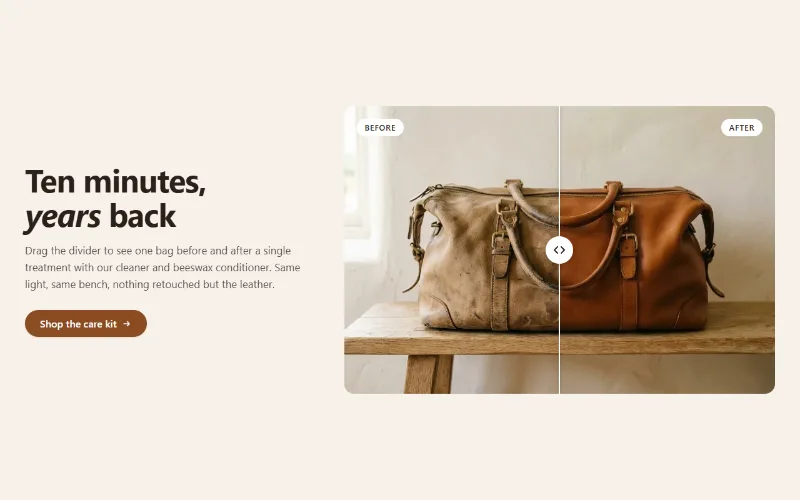
Before / after slider
Two photos in one frame with a draggable divider, so shoppers can compare before and after. Keyboard and screen reader friendly, with separate mobile images.
Product page
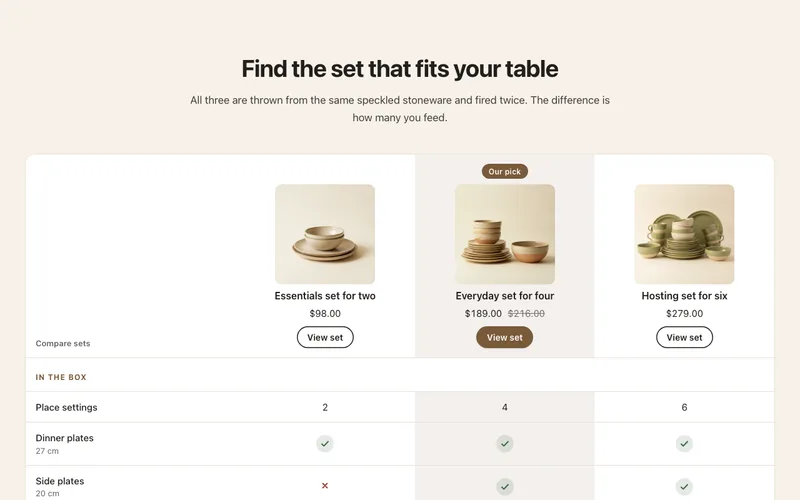
Comparison table
Compare 2 to 4 products or plans by feature rows with check, cross and text cells, a highlighted column and a sticky feature column on mobile.
Product page
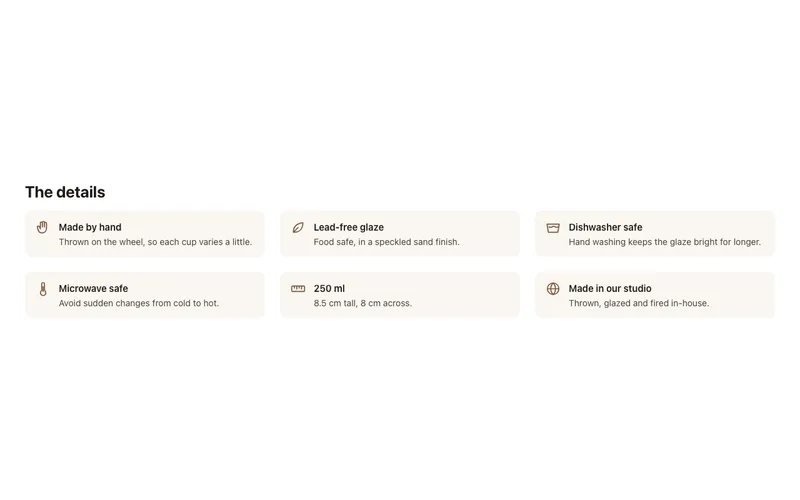
Product highlights
Icon points under the buy box for material, care, origin, size or warranty, typed or linked to product metafields. Empty points hide per product.
