Product highlights
Icon points under the buy box for material, care, origin, size or warranty, typed or linked to product metafields. Empty points hide per product.
- Category
- Product page
- Use on
- Product
- Reads
- Content only, or product metafields
- Size
- 16 KB, no JavaScript
- License
- MIT, free for client work
In short
Product highlights is a free Shopify section that lists a product's key facts as short icon points under the buy box: material, care, origin, size, warranty. Each point is a block whose title and text you type or connect to a product metafield in the theme editor, so one product template shows each product's own details, and a point that is empty for a product is left out. There are twelve built-in line icons or your own icon images, a list or grid layout, and plain, card or divided styles. Pure Liquid and CSS for Online Store 2.0 themes, without an app.
When to use it
- Material, care and origin points under the add to cart button
- Dimensions and capacity from metafields on furniture or kitchenware
- A row of product promises (handmade, recycled packaging, two-year warranty) on a landing page
In the theme editor
- Heading (tag H1–H3 or paragraph, three sizes)
- Point blocks (up to 12): built-in icon or custom image, title and text with metafield support
- List or grid (2–4 columns on desktop, 1–2 on mobile), plain, card or divided points, icon size
- Page or full width, alignment per device
- Background color or gradient, text, icon, card and divider colors
- Top and bottom padding per device, show on desktop/mobile only, anchor ID, fade in on scroll
Files
sections/lib-product-highlights.liquidView the code
Written in plain Liquid and CSS, with no JavaScript. No app, no dependencies.
How to add it to your theme
- Copy the section file into your theme’s sections folder, and any snippet it lists into snippets.
- In the theme editor, choose Add section and pick the one that starts with “Lib ·”.
- Replace the sample text with your store’s own, and set the colors to match your brand.
Questions
- How do I show different highlights per product?
- Create product metafields (for example Material or Care) under Settings > Custom data, fill them in on each product, then connect a point's title or text to the metafield with the dynamic source button in the theme editor. Points whose title and text are both empty for a product don't render.
- Can I use my own icons?
- Yes. Each point has twelve built-in line icons (natural, handmade, fabric, water, washing, heat, sun, recycled, origin, size, warranty, check), no icon, or a small image you upload. Icon size is a section setting.
- Where should I put it on the product page?
- Usually right after the main product section, in the list layout with divided or card points, so it reads as part of the buy box. The grid layout suits a full-width row further down or on a landing page.
- Is it accessible?
- The points are a real list with text titles; icons are decorative and hidden from screen readers, so nothing is said twice.
Before you publish
- The text in the demos is sample content. Replace it with facts about your own store before you publish.
- Animations are switched off for visitors who ask for reduced motion.
- We check every file with Shopify Theme Check before publishing it here.
Need it adapted to your theme, or a section that isn’t here? See Shopify theme development.
More sections
Product page
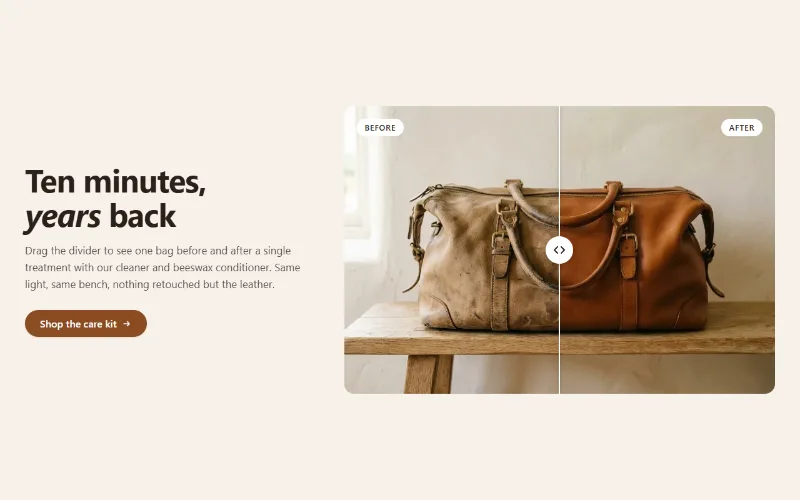
Before / after slider
Two photos in one frame with a draggable divider, so shoppers can compare before and after. Keyboard and screen reader friendly, with separate mobile images.
Product page
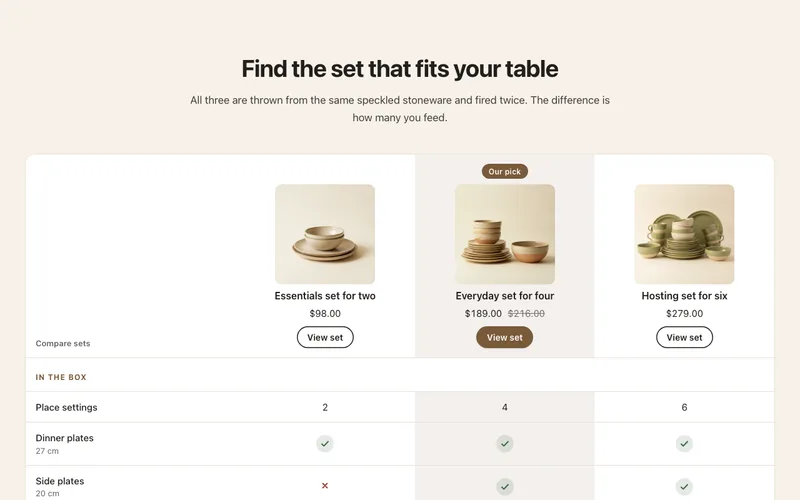
Comparison table
Compare 2 to 4 products or plans by feature rows with check, cross and text cells, a highlighted column and a sticky feature column on mobile.
Product page
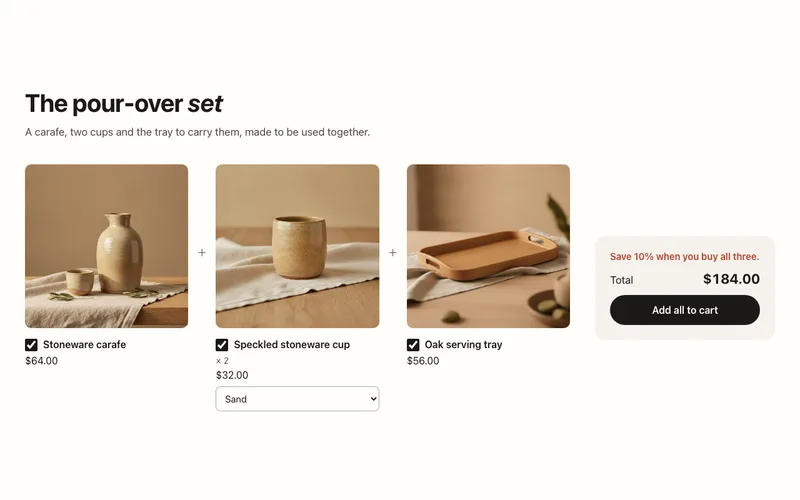
Product bundle
Buy-it-together bundle of two or three products with variant menus, a live total and one Add all to cart button through the Cart AJAX API.
