Newsletter banner
A compact email sign-up: a one-row strip or a footer-style block with optional image. Saves subscribers as Shopify customers; no app or JavaScript.
- Category
- Forms and newsletter
- Use on
- Home, Footer area, Blog, Any page
- Reads
- Shopify customer form
- Size
- 20 KB, no JavaScript
- License
- MIT, free for client work
In short
Newsletter banner is a free Shopify section for a compact email sign-up in two styles: a strip with the heading, a short line and the email field in one row, or a larger footer-style block with heading, text, form and small print beside an optional image. It uses Shopify's own customer form, so each subscriber is saved as a customer tagged "newsletter" plus an optional tag of your own, and it shows your success and error messages. It needs no JavaScript and works in Online Store 2.0 themes without an app.
When to use it
- A slim sign-up strip between sections on the home page or under blog articles
- A sign-up block placed right above the theme footer, with a photo beside it
- A waitlist sign-up on a coming-soon or launch page
In the theme editor
- Style: strip (one row from 750px) or footer block
- Heading (H1–H3 or paragraph tag, three sizes) and short text
- Shopify customer form: field label (shown or screen-reader only), placeholder, button, extra customer tag, small print with privacy link, success and error messages
- Footer block: desktop and mobile image, left or right
- Page or full width, text alignment per device
- Background color or gradient, text, accent, text on accent, field background and field text colors
- Top and bottom padding per device, show on desktop/mobile only, anchor ID, rise in on scroll
Files
sections/lib-newsletter-banner.liquidView the code
snippets/lib-image.liquidView the code
Written in plain Liquid and CSS, with no JavaScript. No app, no dependencies.
How to add it to your theme
- Copy the section file into your theme’s sections folder, and any snippet it lists into snippets.
- In the theme editor, choose Add section and pick the one that starts with “Lib ·”.
- Replace the sample text with your store’s own, and set the colors to match your brand.
Questions
- How is it different from the Newsletter signup section?
- Newsletter signup is a full section with centered, split-image and image-banner layouts. Newsletter banner is the compact version: a one-row strip that fits between other sections, or a footer-style block, with the same Shopify customer form.
- Where do the subscribers go?
- Into your Shopify customers, tagged "newsletter" and, if you set one, your own tag (for example "footer"), so you can see where they signed up. Send to them with Shopify Email or an email app that syncs customers.
- What does a shopper see after signing up?
- The page reloads at the section and the form is replaced by your success message. If the email is not accepted, your error message shows with Shopify's own explanation, and the field is marked invalid for screen readers.
- Can the strip sit inside the footer?
- Place it as the last section of the template, or in the footer group in themes that let you add sections there; it takes the full width or the page width you choose.
Before you publish
- The text in the demos is sample content. Replace it with facts about your own store before you publish.
- Animations are switched off for visitors who ask for reduced motion.
- We check every file with Shopify Theme Check before publishing it here.
Need it adapted to your theme, or a section that isn’t here? See Shopify theme development.
More sections
Forms and newsletter
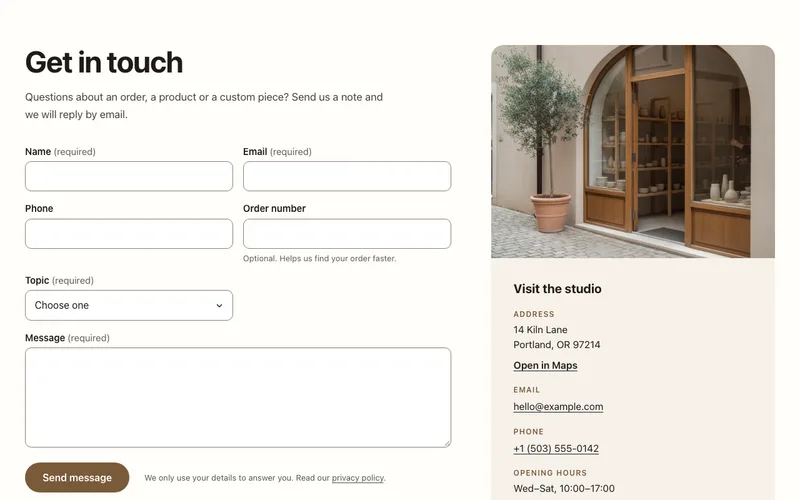
Contact form
Shopify's own contact form with name, email, phone, message and extra fields, plus an info column with an image, address, map link, email and hours.
Forms and newsletter
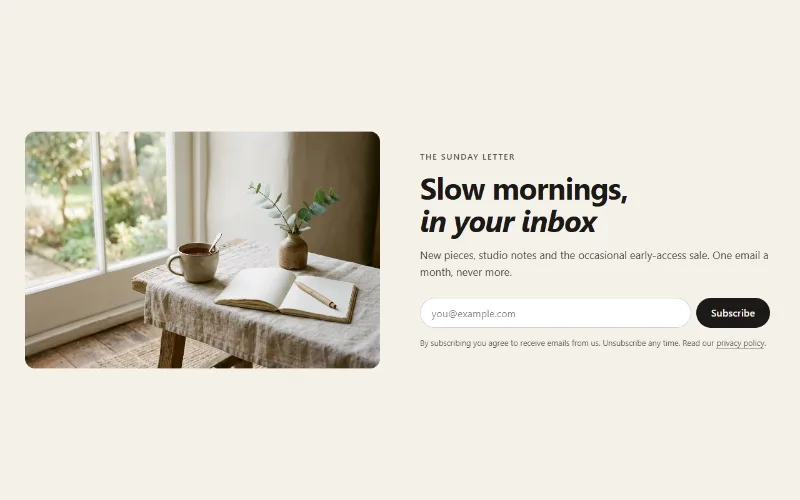
Newsletter signup
An email signup that saves subscribers as Shopify customers tagged newsletter, in a centered, split-image or image-banner layout. No app or JavaScript.
Hero and banners
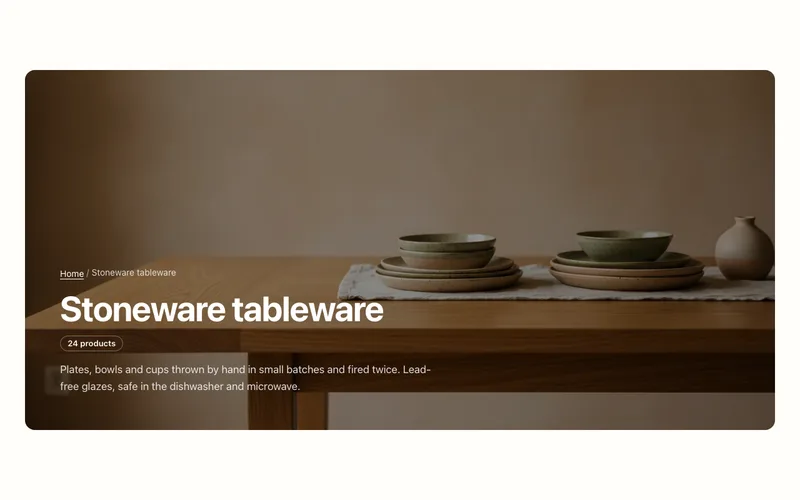
Collection banner
Collection page header with the collection's title, description, image and product count, over the image or beside it, plus an optional breadcrumb.
