Size chart
A size table in a side drawer, a pop-up or on the page, with a cm / in switch, measuring notes and a how-to-measure image. Type the table or use a page.
- Category
- Product page
- Use on
- Product, Collection, Any page
- Reads
- Content only, or a page's content
- Size
- 35 KB, small script included
- License
- MIT, free for client work
In short
Size chart is a free Shopify section that shows a size table behind a "Size chart" link or button, in a side drawer or a centred pop-up, or straight on the page. You type the table in the theme editor (one row per line, cells separated by |) or point it at a page, and shoppers can switch between centimetres and inches. It adds measuring notes and an optional how-to-measure image, and works in Online Store 2.0 themes without an app.
When to use it
- A "Size chart" link under the buy box on clothing, shoe or ring product templates
- A full size guide on a dedicated Sizing page, shown on the page with a how-to-measure photo
- One shared size table kept in a page and reused by several product templates
In the theme editor
- Show the chart in a side drawer, in a pop-up or on the page
- Button label and style: text link with icon, solid or outline
- Heading, heading tag and size, intro text
- Table typed in the section (rows per line, cells split by |) or the content of a page
- cm / in switch with the unit you typed in, unit labels and a table caption
- Measuring notes and a desktop and mobile how-to-measure image, each with its own focal point
- Heading and button alignment per device, page or full width
- Background color or gradient, text, accent, table, header and line colors
- Top and bottom padding per device, show on desktop/mobile only, anchor ID, drawer slide-in
Files
sections/lib-size-chart.liquidView the code
snippets/lib-image.liquidView the code
snippets/lib-button.liquidView the code
Written in plain Liquid and CSS with a small script. No app, no dependencies.
How to add it to your theme
- Copy the section file into your theme’s sections folder, and any snippet it lists into snippets.
- In the theme editor, choose Add section and pick the one that starts with “Lib ·”.
- Replace the sample text with your store’s own, and set the colors to match your brand.
Questions
- How do I add my sizes?
- Type them in the Table setting: one row per line, cells separated by a vertical bar (|). The first line is the header and the first cell of each row is the size, for example "S | 86-90 | 68-72". Or set the table source to a page and the page's content, usually a table made in the page editor, becomes the chart.
- Can shoppers switch between centimetres and inches?
- Yes. Turn on the cm / in switch and say which unit you typed. Number cells and ranges such as 86-90 are converted to one decimal place; other text, like sizes or notes, stays as typed. Without JavaScript the switch is hidden and your typed values show.
- Is the drawer accessible?
- It is a native dialog: focus moves into it, Escape and the close button close it, the rest of the page can't be reached while it is open, page scrolling is locked and focus returns to the button afterwards. The table has a caption and header cells, and on small screens it scrolls sideways inside a labelled region while the size column stays in view.
- Can I use different charts for different products?
- Yes. Add the section to each product template that needs its own chart, or keep each chart in its own page and pick that page in the section, so editing the page updates every template that uses it.
- Can every label be translated?
- Every word a shopper sees is a setting: the button label, heading, caption, unit labels and the screen-reader names for the close button, the unit switch and the table area. Change them in the theme editor or translate them with Shopify's Translate & Adapt.
Before you publish
- The text in the demos is sample content. Replace it with facts about your own store before you publish.
- Animations are switched off for visitors who ask for reduced motion.
- We check every file with Shopify Theme Check before publishing it here.
Need it adapted to your theme, or a section that isn’t here? See Shopify theme development.
More sections
Product page
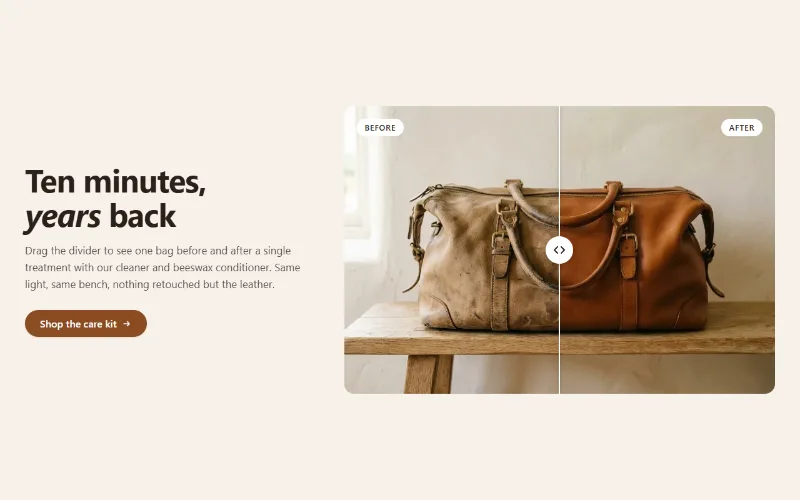
Before / after slider
Two photos in one frame with a draggable divider, so shoppers can compare before and after. Keyboard and screen reader friendly, with separate mobile images.
Product page
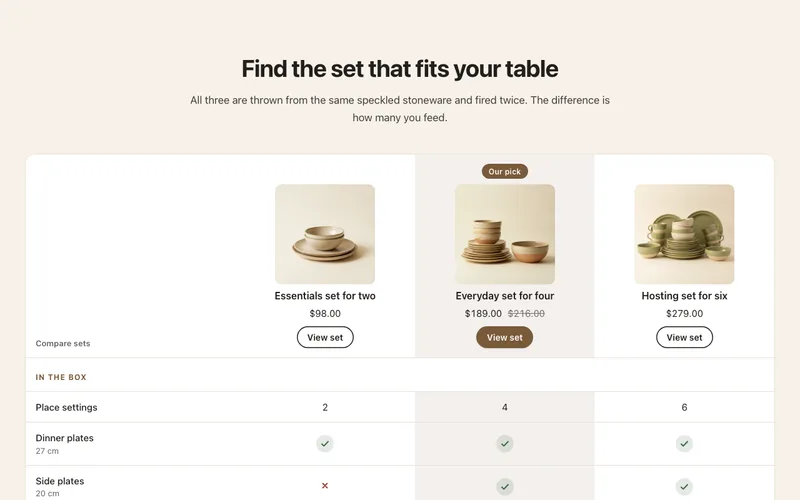
Comparison table
Compare 2 to 4 products or plans by feature rows with check, cross and text cells, a highlighted column and a sticky feature column on mobile.
Product page
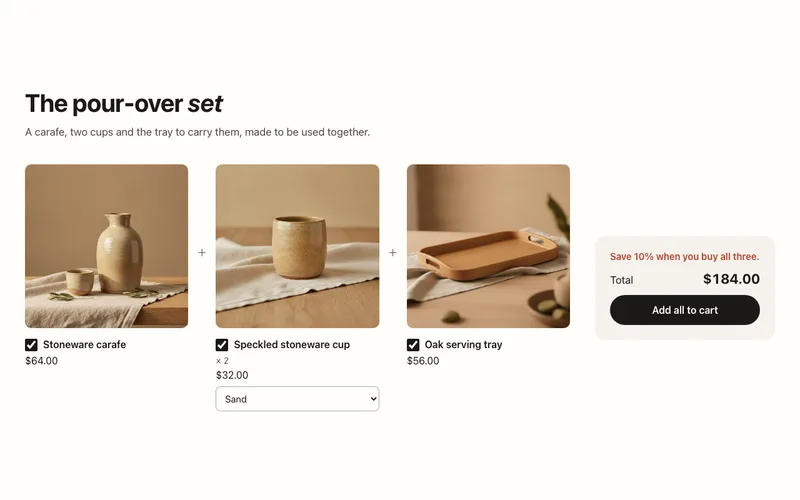
Product bundle
Buy-it-together bundle of two or three products with variant menus, a live total and one Add all to cart button through the Cart AJAX API.
