Timeline
Brand history or a process as dated milestones on a line, alternating sides on desktop and stacked on mobile, with images and links. Liquid and CSS only.
- Category
- Content and storytelling
- Use on
- About, Landing pages, Home
- Reads
- Content only
- Size
- 21 KB, no JavaScript
- License
- MIT, free for client work
In short
Timeline is a free Shopify section that tells a brand's history, or the stages of a process, as dated milestones on a line. On desktop the milestones alternate either side of a central line or sit on one side; on mobile they stack on one side. Each milestone has a date label (any text, such as 2019 or Spring 2021), a title, text, an optional image with a separate mobile image and focal points, and an optional link. It is an ordered list in plain Liquid and CSS, with no JavaScript, for Online Store 2.0 themes.
When to use it
- The story of the brand on an About page, from the first product to today
- How a made-to-order product is produced, from order to delivery
- A collaboration, restoration or renovation documented step by step
In the theme editor
- Heading (tag H1–H3 or paragraph, three sizes) and intro text
- Milestone blocks: date label, title, text, image and mobile image, link with new tab
- Alternating sides or one side on desktop, plain or card milestones
- Image shape (4:3, 16:9, square), page or full width, heading alignment per device
- Background color or gradient, text, accent, text on accent, line and card colors
- Top and bottom padding per device, show on desktop/mobile only, anchor ID, fade in on scroll
Files
sections/lib-timeline.liquidView the code
snippets/lib-image.liquidView the code
snippets/lib-button.liquidView the code
Written in plain Liquid and CSS, with no JavaScript. No app, no dependencies.
How to add it to your theme
- Copy the section file into your theme’s sections folder, and any snippet it lists into snippets.
- In the theme editor, choose Add section and pick the one that starts with “Lib ·”.
- Replace the sample text with your store’s own, and set the colors to match your brand.
Questions
- How many milestones can I add?
- Up to 16, each a block you can reorder in the theme editor. The date label is free text, so it can be a year, a season or "Step 1".
- How does it look on mobile?
- The line moves to the left and every milestone stacks to its right, whatever the desktop layout. You can also give each milestone a separate mobile image.
- Is it readable by screen readers and search engines?
- Yes. The milestones are an ordered list in the HTML, in your order, with real headings; the line and markers are decoration only. There is no JavaScript.
- Can milestones fade in as you scroll?
- Yes, with the motion setting, in browsers that support scroll-driven CSS animations. It's never on when a visitor prefers reduced motion, and the content is visible without it.
Before you publish
- The text in the demos is sample content. Replace it with facts about your own store before you publish.
- Animations are switched off for visitors who ask for reduced motion.
- We check every file with Shopify Theme Check before publishing it here.
Need it adapted to your theme, or a section that isn’t here? See Shopify theme development.
More sections
Content and storytelling
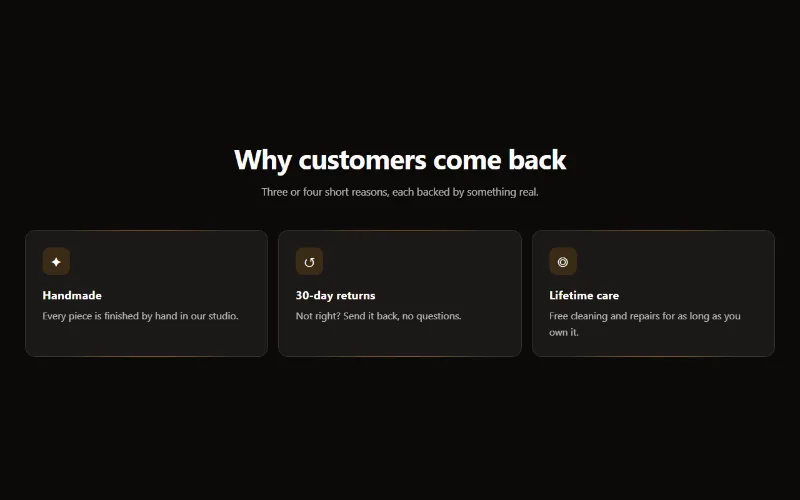
Feature cards
Two to four columns of cards with an icon, title and text. On desktop a soft glow follows the pointer; on touch screens the cards show without it.
Content and storytelling
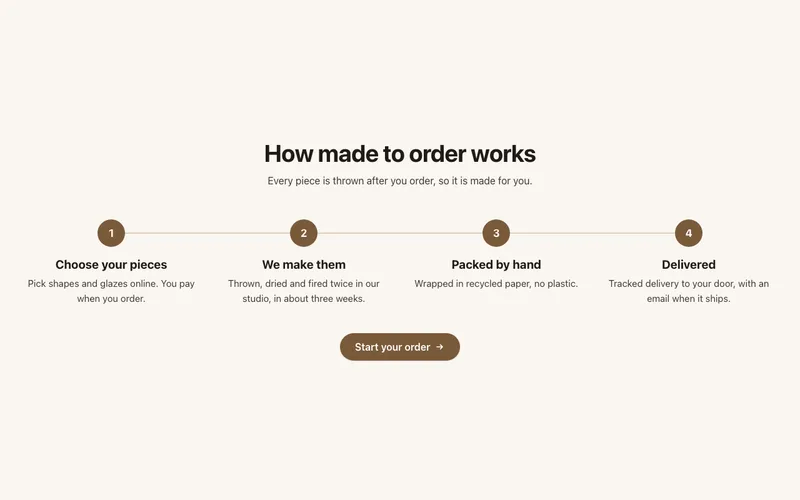
How it works
Numbered steps with icons joined by a line, for subscriptions, made-to-order products or services: a row on desktop, stacked on mobile, with a button.
Content and storytelling
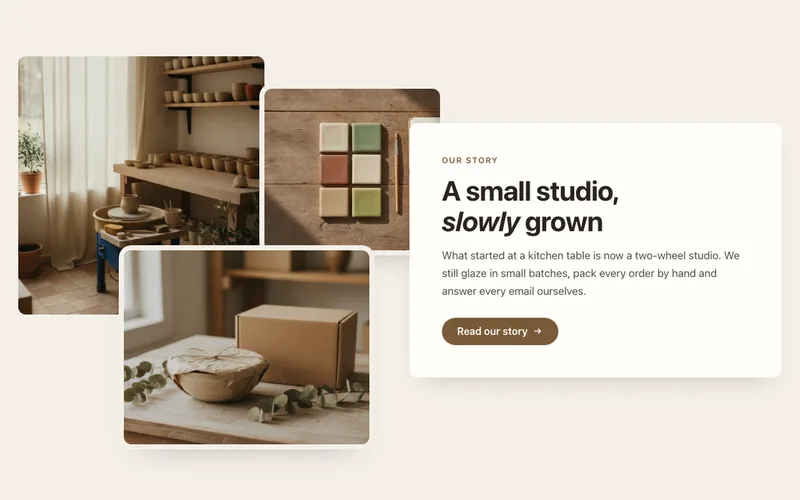
Image collage
Two or three overlapping photos beside a text card with heading, text and a button, for About pages. A tidy grid on mobile. Liquid and CSS only.
